
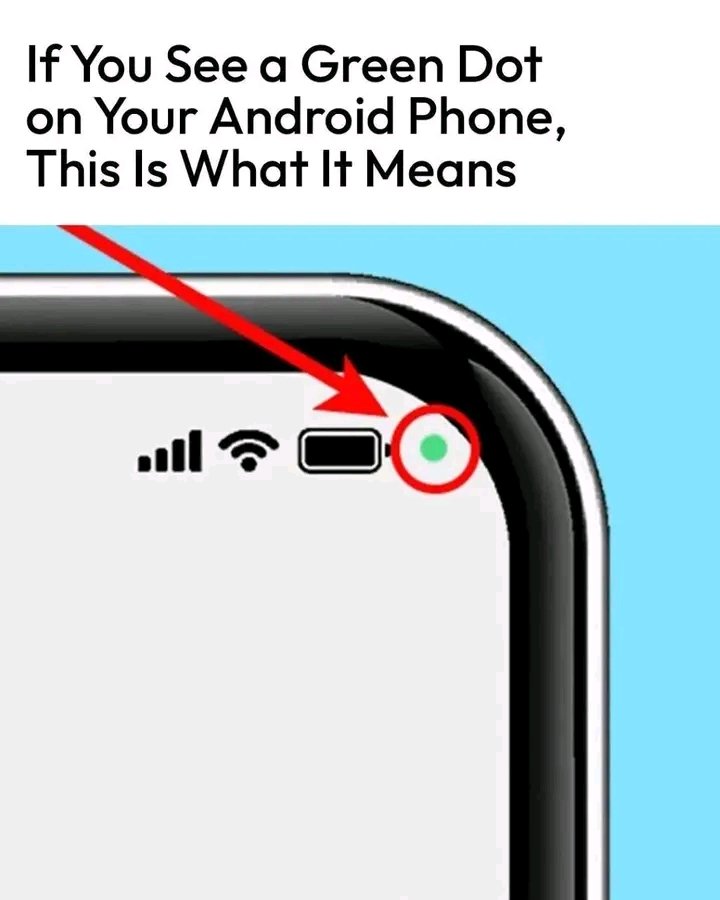
What Does the Green Dot in the Upper-Right Corner of Your Android Phone Mean?
Have you ever noticed a small green dot appearing in the upper-right corner of your Android phone and wondered whether something was wrong? You are not alone. This tiny indicator can be confusing, especially if you do not know why it appears or which app is using your phone’s sensors.
The good news is that the green dot is usually a privacy feature designed to help you see when an app is accessing your camera or microphone. It does not automatically mean your phone has been hacked or that someone is spying on you.
Here is what the green dot means, how to identify the app using your camera or microphone, and what you can do if it appears unexpectedly.
1. What Does the Green Dot Mean?
On many Android phones running Android 12 or later, a green indicator appears when an app is using your camera or microphone.
For example, you might see it when you:
- Take a photo or record a video
- Make a video call
- Record a voice message
- Use voice search
- Speak to a voice assistant
- Join an online meeting
The indicator is intended to make sensor access more visible. Its exact appearance and behavior can vary depending on your Android version and phone manufacturer.
Seeing the green dot is not proof of malicious activity. It often appears during completely normal phone use.
2. How to Find Out Which App Is Using Your Camera or Microphone
If the green dot appears and you are unsure why, Android provides a way to investigate.
Follow these steps:
Step 1: Look at the top of your screen.
When the green indicator appears, swipe down from the top of your phone to open the notification or Quick Settings panel.
Step 2: Tap the green privacy indicator, if available.
On supported Android versions, tapping the indicator or its privacy notification can show which app or service is accessing the camera or microphone.
Step 3: Check the app name.
If you see a camera, microphone, messaging, or video-call app that you are currently using, the activity may be expected.
Step 4: Investigate anything unfamiliar.
If an app you do not recognize appears, check its name in your phone’s settings and review the permissions it has been granted.
Menu names and indicator behavior vary by manufacturer, so your phone may display these options slightly differently.
3. What If the Green Dot Appears When You Are Not Using Your Phone?
An unexpected green dot deserves a closer look, but there is no need to panic.
Some apps may use the microphone or camera for legitimate features even when you are not actively looking at them. Background behavior can vary by app and Android version.
If you cannot explain the indicator, try the following:
- Open the privacy indicator to identify the app.
- Close the relevant app and see whether the indicator disappears.
- Review the app’s camera and microphone permissions.
- Update your apps and Android system software.
- Uninstall an unfamiliar app if you cannot establish that it is trustworthy.
If an app repeatedly accesses your camera or microphone without a clear reason, consider revoking its permissions and contacting the app developer or your device manufacturer’s support service.
4. How to Check Camera and Microphone Permissions
You can control which apps are allowed to use these sensors.
On many Android phones:
- Open Settings.
- Select Security and privacy or Privacy.
- Open Permission manager or Privacy dashboard.
- Choose Camera or Microphone.
- Review the apps listed and change permissions where appropriate.
You can usually choose options such as allowing access only while using the app, asking every time, or denying access. Available choices vary by app and Android version.
Remember that denying a permission may prevent an app from performing certain functions, such as taking photos or recording voice messages.
5. Can You Turn Off Camera and Microphone Access Completely?
Many Android phones offer camera and microphone controls in Quick Settings.
To check:
- Swipe down from the top of the screen.
- Swipe down again to reveal more Quick Settings tiles.
- Look for Camera access and Microphone access.
- If available, tap a control to disable access.
When these controls are switched off, apps generally cannot use the corresponding sensor through the standard Android interfaces. Emergency functions, system behavior, and manufacturer-specific implementations may differ.
You can turn access back on when you need to take a photo, make a call, or record audio.
6. Does the Green Dot Mean Someone Is Spying on You?
Not necessarily. The indicator tells you that the camera or microphone is being accessed; it does not tell you whether the activity is malicious.
If you are concerned about your privacy, look for additional warning signs, such as unfamiliar apps, unexpected permission changes, or suspicious account activity. These signs also do not independently prove that your phone has been compromised.
For added protection:
- Install apps from trusted sources.
- Keep Android and your apps updated.
- Remove apps you no longer use.
- Review permissions regularly.
- Use Google Play Protect where available.
- Avoid installing apps from links or websites you do not trust.
If you suspect your accounts have been compromised, review their security settings from a trusted device and change affected passwords.
7. What If the Green Dot Does Not Disappear?
First, identify which app is using the camera or microphone. If the activity appears legitimate, it may be associated with a call, recording, or another feature that is still running.
If the indicator remains visible unexpectedly:
- End active calls or recordings.
- Close the app that appears to be using the sensor.
- Restart your phone.
- Check for app and system updates.
- Review the app’s permissions again.
If the issue continues, consult your phone manufacturer’s support resources. Do not assume that the indicator itself means you have malware.
Frequently Asked Questions
Does the green dot mean my camera is recording me?
No. It indicates camera or microphone access on supported Android versions, but it does not prove that video or audio is being saved or transmitted.
Can I tell whether the camera or microphone is being used?
On supported devices, tapping the green privacy indicator or opening the privacy controls can reveal which sensor is active and which app is using it.
Do all Android phones have the green dot?
No. The exact indicator depends on the Android version and manufacturer. Older devices and some customized interfaces may display privacy information differently.
Is the green dot a virus warning?
No. The green dot is normally a built-in privacy indicator, not a malware alert.
Final Thoughts
The green dot in the upper-right corner of your Android phone is generally a useful privacy signal. It helps alert you when an app accesses your camera or microphone, giving you an opportunity to check whether that access makes sense.
If it appears while you are taking a photo, recording audio, or making a video call, it is usually expected. If it appears unexpectedly, identify the app, review its permissions, and disable access when appropriate.
The most important step is to check which app is using your camera or microphone rather than assuming the worst. A few simple privacy checks can help you understand your phone’s behavior and maintain better control over your personal information.
Note: Android menus and privacy features vary by phone manufacturer and operating-system version. Consult your device’s official support documentation for model-specific instructions.
Add a concise troubleshooting checklistClarify the green dot’s limits